

Image Resizer
Resize images by width, height or longest edge, one at a time or in a batch.
 Try an exampleNo image needed · 9 examples
PNG keeps transparency. JPG suits photos and uploads.
Choose your images
Drag, choose files, or paste a screenshot with Ctrl+V / Cmd+V. Up to 20 images.
Processed on your device. No upload. No account.
JPG, JPEG, PNG, WebP, HEIC, AVIF & JFIFUp to 20 files · 21 MB each · Static images only
Image size limits
Up to 20 files · 21 MB each · 25 MP · 10,000 px per side · Static images only
Keep up to 105 MB of results per batch. Output files may exceed the input file size limit.
SEE WHAT’S POSSIBLE
The right size for your next idea.
A few ideas for your next image. Pick a scene and make it yours.
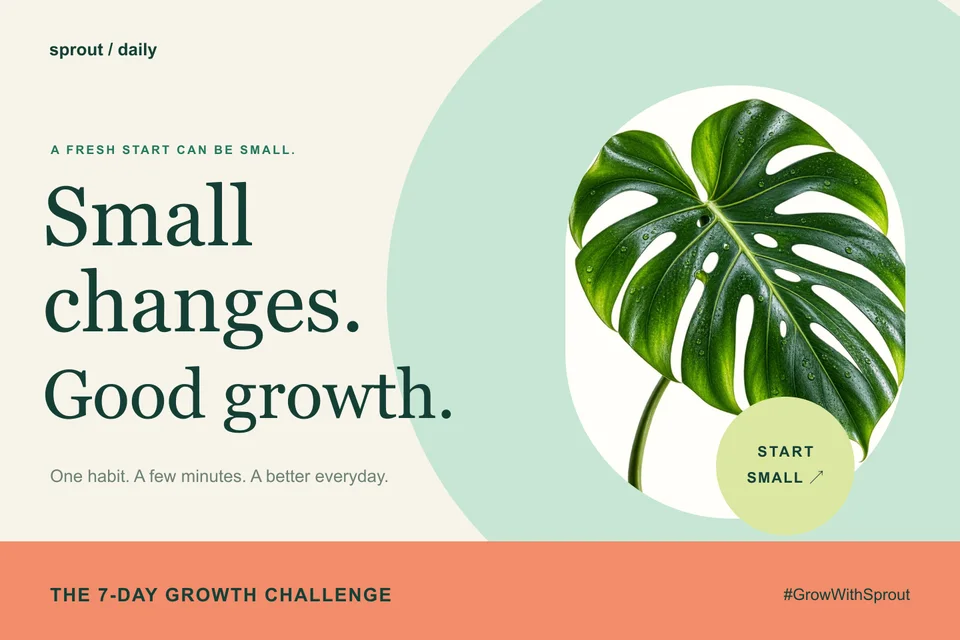
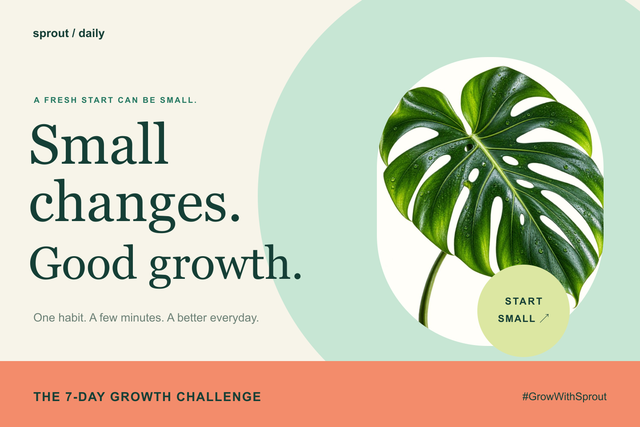
One campaign, several social sizes
Choose dimensions for campaign graphics to fit a post, banner or product listing.
Adds a sample to the tool above. Choose your settings, then process it.
Prepared previews with measured sample file sizes. Your settings and browser determine the actual result.
When to use this converter
Choose a size box with the aspect ratio locked, or unlock it for identical exact dimensions across the batch. The longest-edge mode keeps proportions. Check actual output dimensions before downloading.
How to use Image Resizer
- Choose your static images.
- Set dimensions, aspect ratio and output format.
- Resize and download the results.
Frequently asked questions
Will every image have the same dimensions?
With the aspect ratio unlocked, every image uses your exact width and height. With the ratio locked, each image fits the requested box and may have different dimensions.
Does enlarging restore detail?
No. Enlarging adds pixels through interpolation, without restoring lost detail. Output must stay within 25 megapixels and 10,000 pixels per side.