

JPG to PDF
JPG · Arrange images into a PDF with sorting, paper size, orientation and margins.
 Try an exampleNo image needed · 1 examples
Processed on your device. No upload. No account.
Drag, choose files, or paste a screenshot with Ctrl+V / Cmd+V. Up to 20 images.
Up to 20 static images, 21 MB each, 25 megapixels per image and 105 MB total input. Try smaller batches on a phone.
SEE WHAT’S POSSIBLE
Your images. One polished document.
A few ideas for your next image. Pick a scene and make it yours.
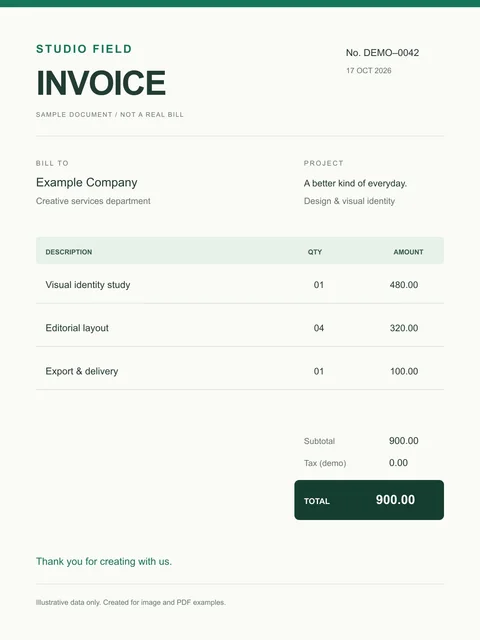
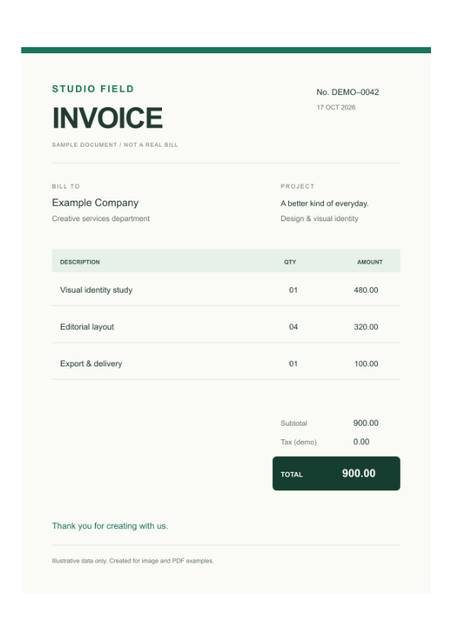
Small text. Clear delivery.
JPG · Arrange images into a PDF with sorting, paper size, orientation and margins.
Adds a sample to the tool above. Choose your settings, then process it.
Prepared previews with measured sample file sizes. Your settings and browser determine the actual result.
When to use this converter
JPG · Each successful image becomes one PDF page in the displayed order. Choose A4, Letter or original image size, set orientation and margins, and download the complete PDF. Images remain on your device.
How to use JPG to PDF
- JPG · Choose your images and put them in order.
- Set paper size, orientation and margins.
- Create and download the complete PDF.
Frequently asked questions
What happens when an image fails?
Failed images are clearly marked and skipped. The PDF contains all successful images in the chosen order, and the result reports their count.
How many images can I combine?
Use up to 20 static images, 21 MB each, 25 megapixels each and 105 MB total input. On phones, start with a smaller batch.